


By creating precise, organized categories (like ‘Acupuncture’ or ‘Supplements’) and the individual items within them (like ‘Initial Consult’ or ‘Retail Kit’), you ensure that Fogo correctly tracks the revenue from every single service and product. This foundation prevents errors when calculating commissions, allowing you to quickly and accurately apply different bonus rates to specific services without confusion.
Step 1: Go to the Management> Staff Management > Bonus General Settings > Categories & Items.
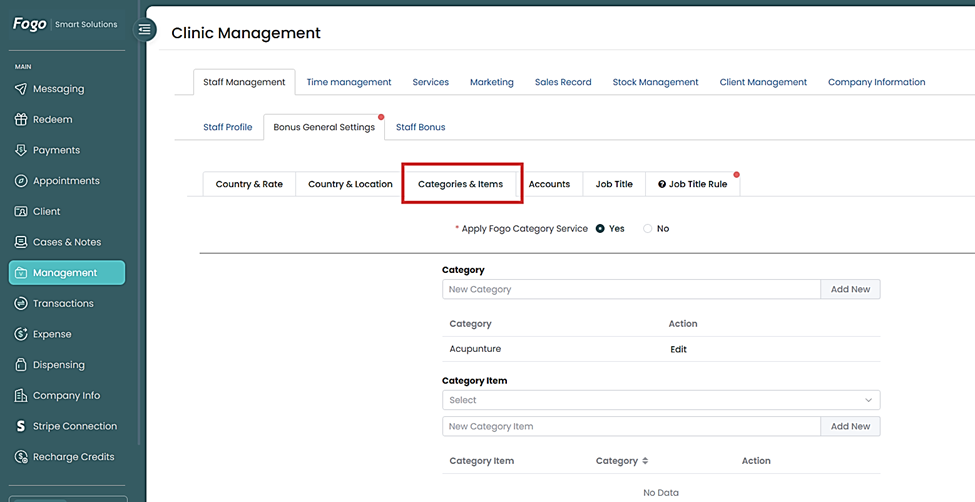
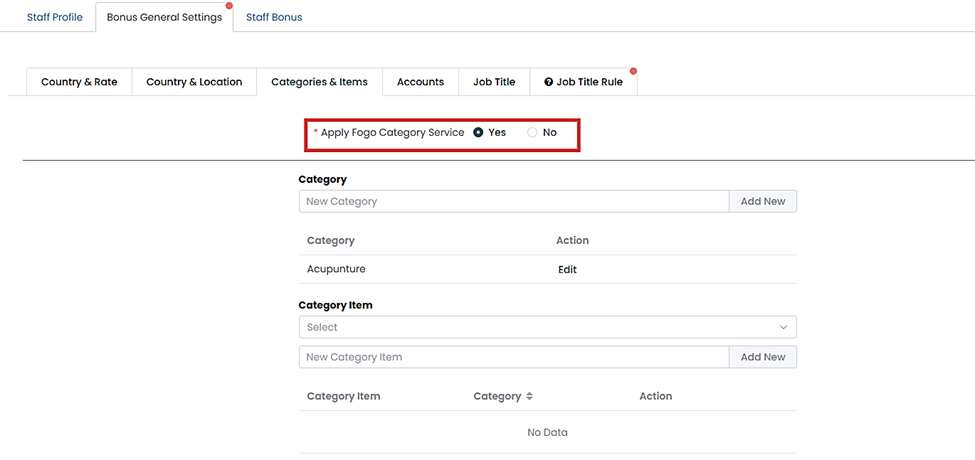
Step 2: At the top, ensure the Apply Fogo Category Service toggle is set to Yes. This links your existing Fogo service list to the bonus system.
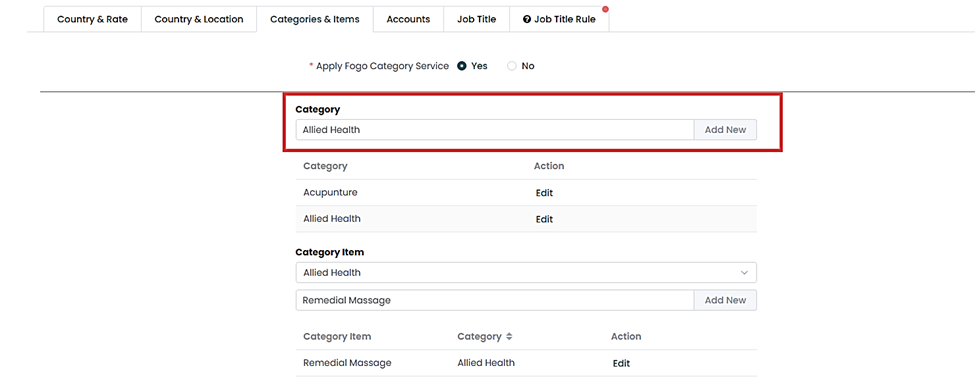
Step 3: Create a New Category: In the Category section, type the name of a new major service or product type into the input field (e.g., Remedial Massage, Chiropractic, Retail Products).
Step 4: Add Category: Click the Add New button next to the input field. The new category will appear in the list below (like ‘Acupuncture’ or ‘Allied Health’)
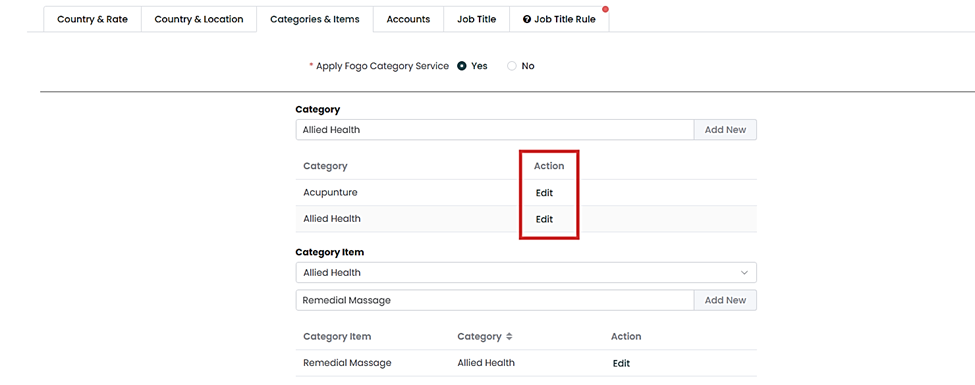
Step 5: Edit/Review: Use the Edit action to modify any existing categories if necessary.
Step 6: Repeat: Repeat this process for all major service lines and product types offered by your clinic.
Step 7: Select Category: In the Category Item section, use the Select dropdown to choose the major category you just created (e.g., Allied Health).
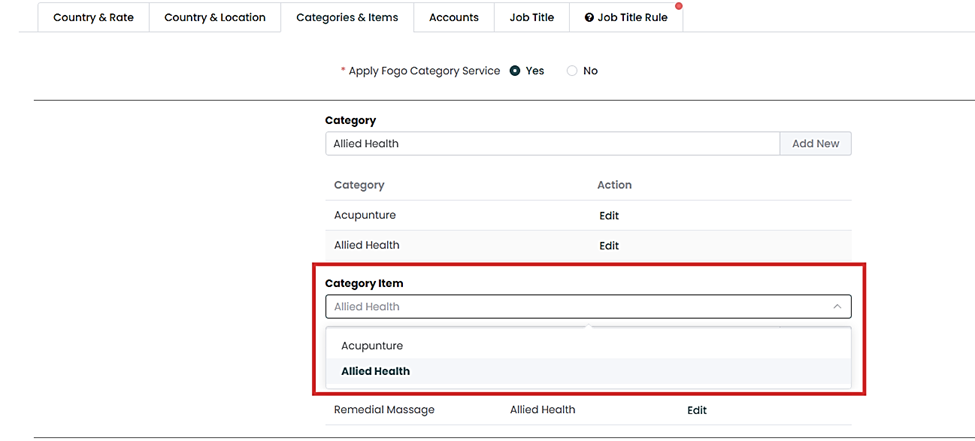
Step 8: Input New Item: Type the name of the specific service or product into the input field below. Add Item: Click the Add New button next to the input field. The new item will appear in the list linked to its category.
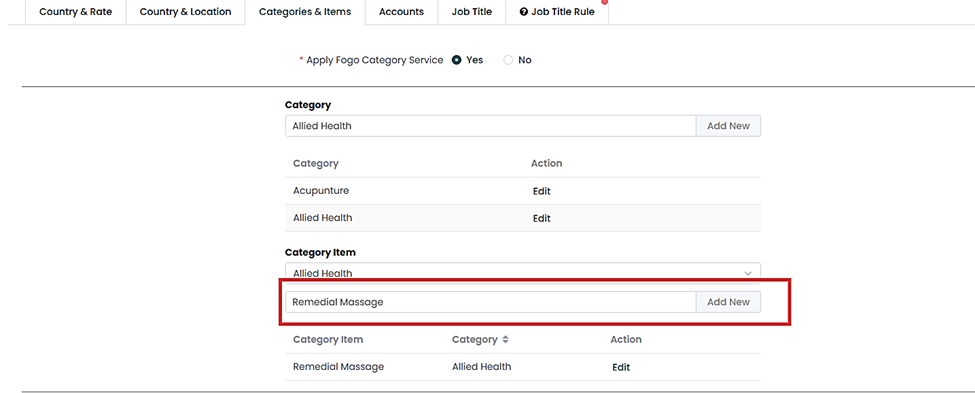
Step 9: Repeat: Repeat this process until ALL individual services, treatments, and retail products have been linked to a Category.
Please proceed to the next FAQ/demo focusing on How to configure Fogo’s Staff Bonus System: Setting up Job Title Rules – Service Performance Reward Rules where we will define the bonus formula based on branch total sales.
You can also watch the demo here Demo on How to set up Staff Bonus in the Fogo System (Part 1)
Need a demo or want to learn more? Email us at contact@fogo365.com.