


The Add New Supplier feature in the Fogo System allows users to record and manage supplier details efficiently. By adding supplier profiles, businesses can organize contact information, company details, and addresses in one place. This ensures easier tracking of transactions, faster expense entry, and improved management of supplier relationships.
Step 1. Go to the Expense module, then select the Suppliers tab. Click the “Add Supplier” button to open the supplier form.

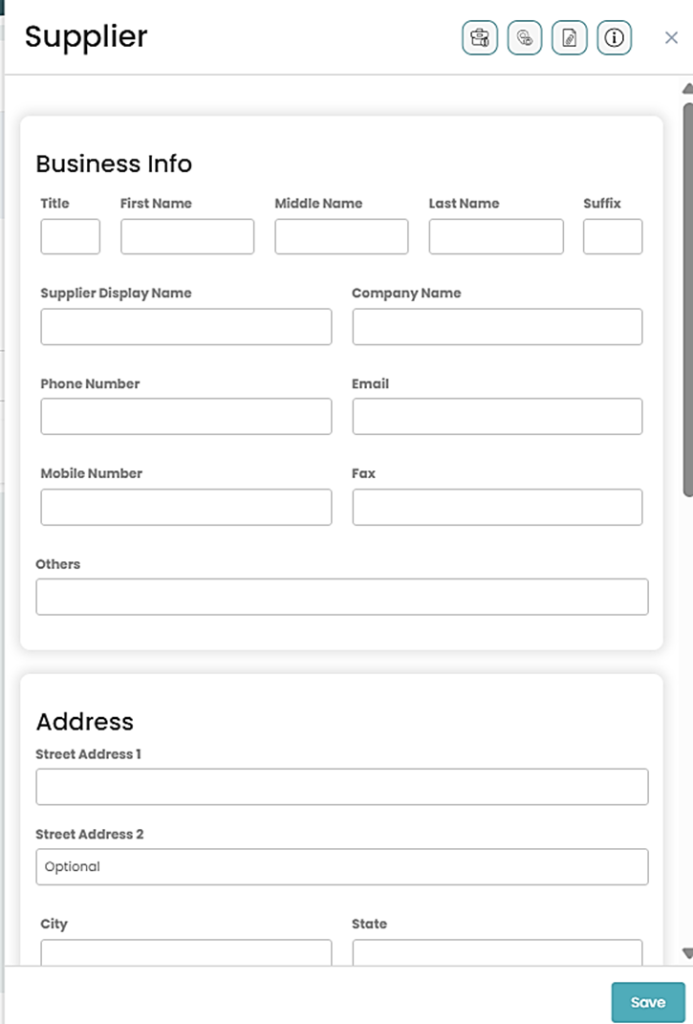
Step 2. Input supplier information in the supplier form then hit “Save”. Make sure to enter the supplier’s Business Info (name, company name, contact details) and Address (street, city, state, postal code). You may also include an email or mobile number for communication.
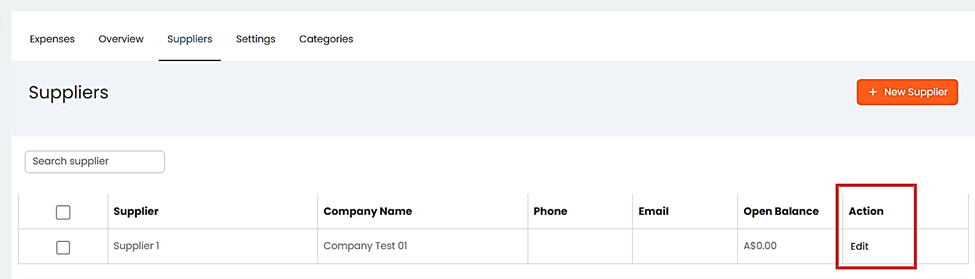
Step 3. To edit information, simply open the supplier record from the list and click Edit to update their information.
Step 4. After entering all the necessary details, click the Save button at the bottom of the form to store the supplier information in the system.
Step 5. Add any supporting files in the Attachments section and type relevant notes in the Memo field.
Step 6. Click “Save”.
You can also watch the demo here Demo on How to Add New Supplier in the Fogo System
Need a demo or want to learn more? Email us at contact@fogo365.com.