


The Expense Settings section in the Fogo System allows users to configure key financial settings for expense management. Through this module, users can define the company’s default country, timezone, and currency, manage tax settings, and set up payment accounts, methods, and operators. Proper configuration ensures that all expense records, tax calculations, and payment tracking align with business standards and local accounting requirements.
Step 1. Go to the Expense module from the left-hand menu, then click the Settings tab at the top of the page.
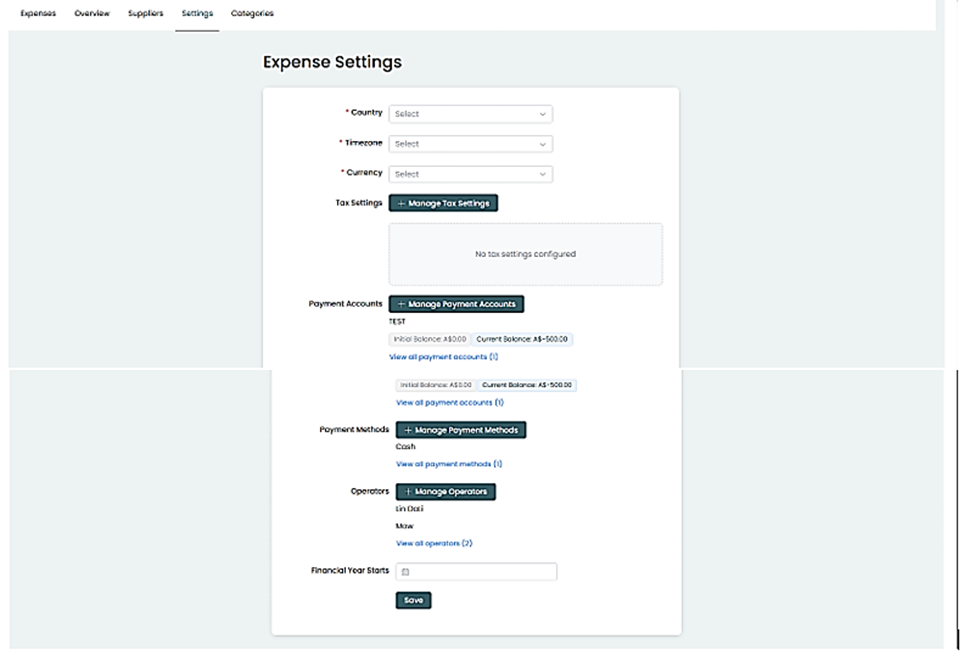
Step 2. Set your Country, Timezone, and Currency, manage Tax Settings, and configure Payment Accounts, Payment Methods, and Operators.
Step 3. Click “Manage Tax Settings”, then enter your tax details such as name, rate, and description.
Step 4. Under Payment Accounts, click “Manage Payment Accounts” to add new accounts or adjust balances.
Step 5. Click “Manage Payment Methods” and add options like cash, credit card, or bank transfer to reflect how expenses are paid.
Step 6. Set up a fiscal year. It allows you to specify the start date of your organization’s financial year for accurate tracking and reporting of expenses.
Step 7. : After editing any field or adding new settings, click the “Save” button at the bottom to apply your changes.
Step 8: Set up Operators. This feature let’s you choose and set up your administrators.
Step 9 : After editing any field or adding new settings, click the “Save” button at the bottom to apply your changes.
You can also watch the demo here Demo on How to manage Expense Settings in the Fogo System
Need a demo or want to learn more? Email us at contact@fogo365.com.