


We’ve set up bonus rules based on revenue, and now we move to time. In this guide, we’ll cover How to configure Working Hours Reward Rules. This feature lets you automatically reward your staff for specific time-based criteria, such as working overtime, after-hours shifts, or meeting time-based goals.
Step 1: Go to the Management> Staff Management > Bonus General Settings > Job Title Rule.
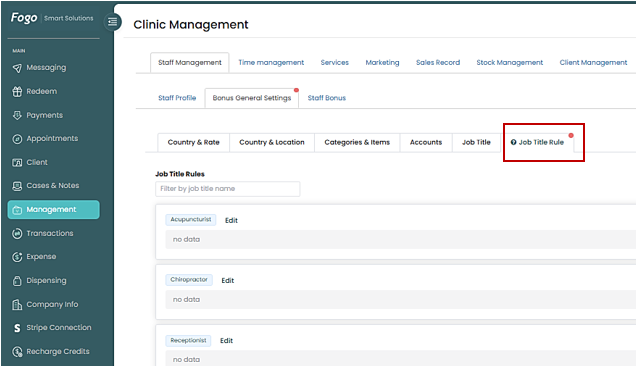
Step 2. Select Job Title: Review the list of defined Job Titles (e.g., Acupuncturist, Chiropractor). Click the “Add” button or the Job Title name for which you want to create a rule. This will open the “Job Title Rules” pop-up modal. Click “Edit” then a pop up window will show the parameters that need to be set for the rule. Select Working hours reward rules
Step 3. Once selected, Rule Name will provide rule calculation details.
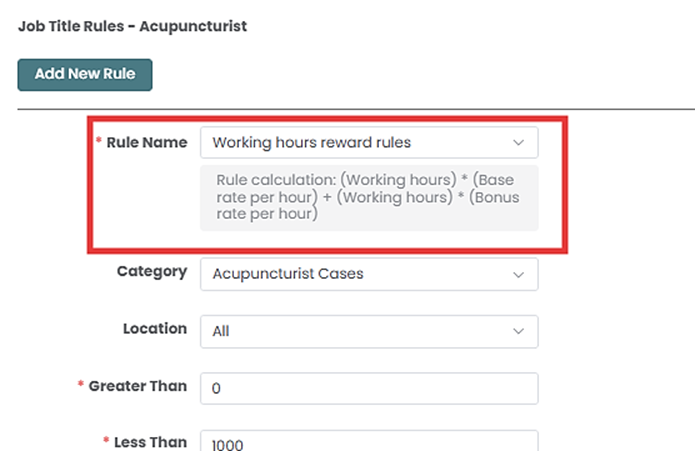
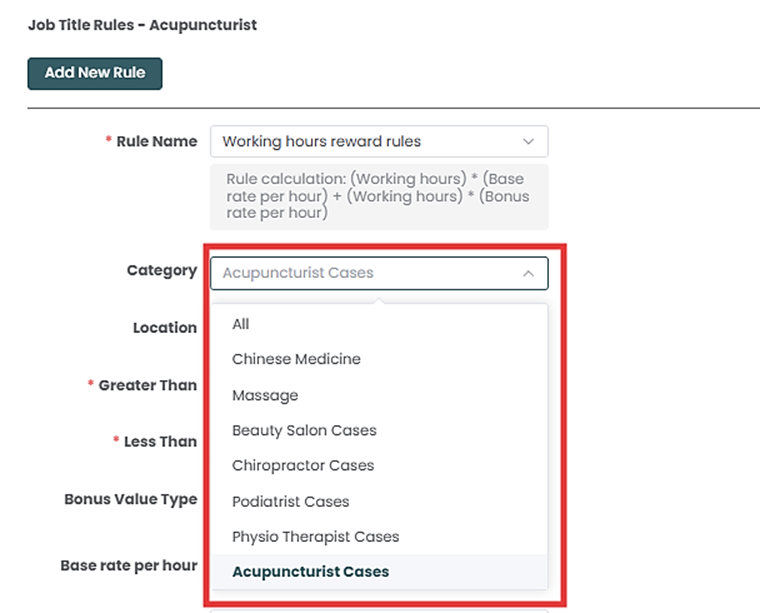
Step 4. Then select the Category and Location from the dropdown.
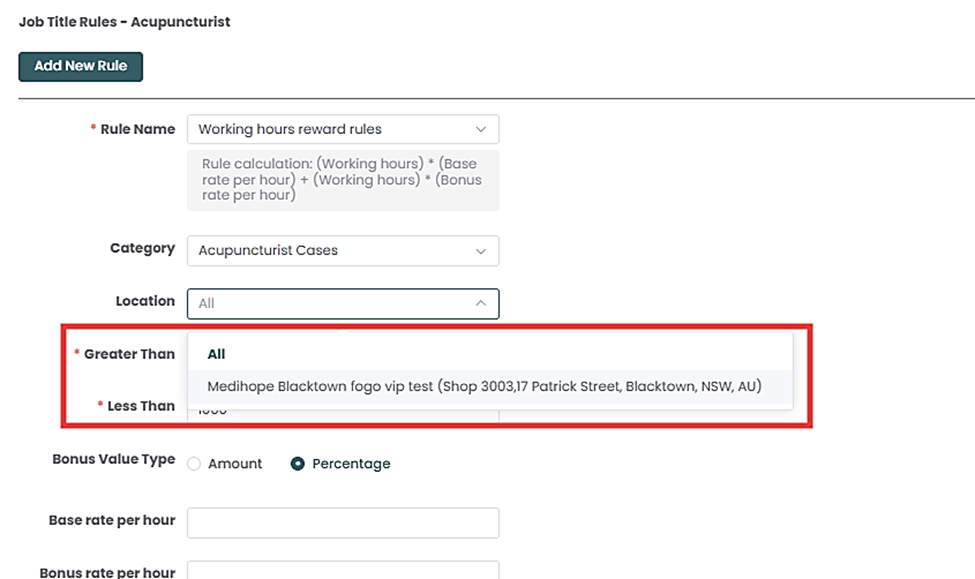
Step 5. Choose Value Type: Select whether the reward will be a Value (a fixed dollar amount per hour) or a Percentage (of the base hourly rate).
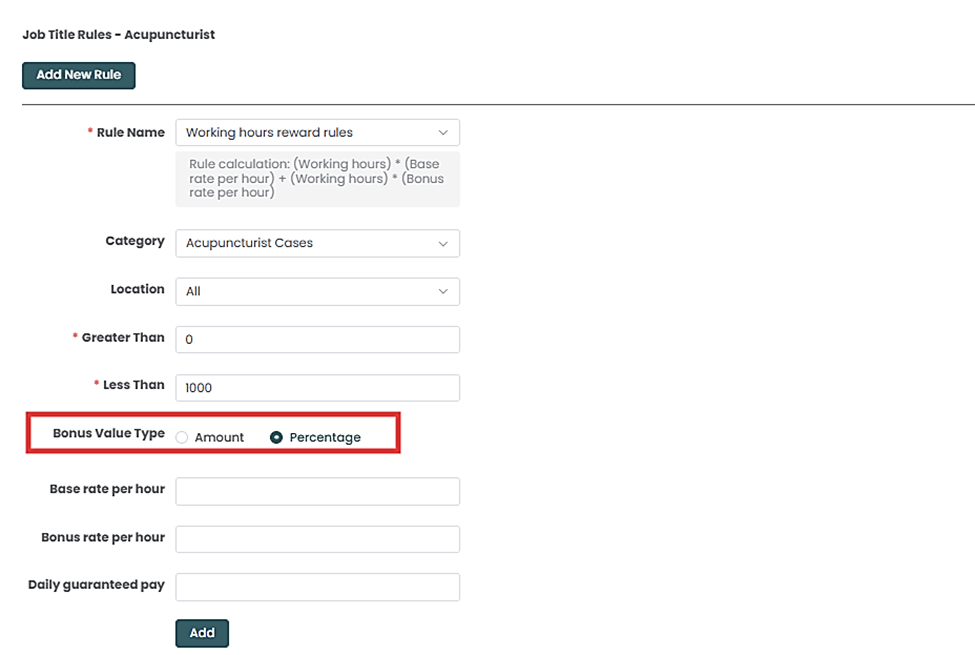
Step 6: The Greater Than and Less Than fields are what enable Fogo’s system to create tiered and conditional bonus structures.
Greater Than field:The reward rule starts applying after the staff member has worked an amount of time (in hours) that exceeds the value entered in this field.
If you enter 8, the staff member receives the defined reward (e.g., 1.5x pay) only on hours worked above 8 for that shift or day (standard overtime).
Less Than field: The reward rule stops applying before the staff member’s accrued working time reaches the amount entered in this field.
If you enter 12, the staff member receives the specific reward (e.g., 1.5x pay) only on hours up to 12. (Any hours beyond 12 might require a separate rule, like 2x pay).
Step 7: Set Reward Amount:
If you selected Value, enter the fixed dollar amount the staff member receives per hour during the reward window (e.g., 5.00 for a $5.00/hour shift allowance).
If you selected Percentage, enter the percentage increase to the base rate (e.g., 50 for 150% pay, commonly known as “time and a half”).
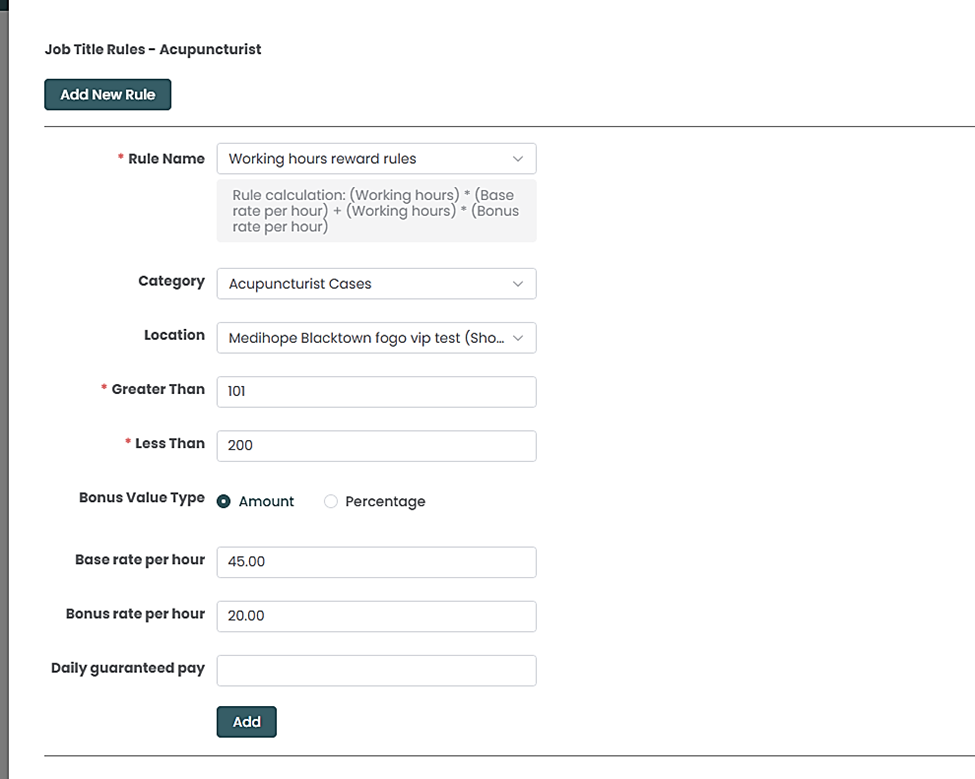
Step 8. Click “Add” to save the rule.
Note: Any modification to a staff bonus rule will trigger a Warning pop-up. To maintain compliance and accurate payroll, you must follow the prompt to unlock and recalculate the relevant prior pay periods in the Staff Bonus Records section.
Step 9. Rules created for the specific Job Title will appear once saved.
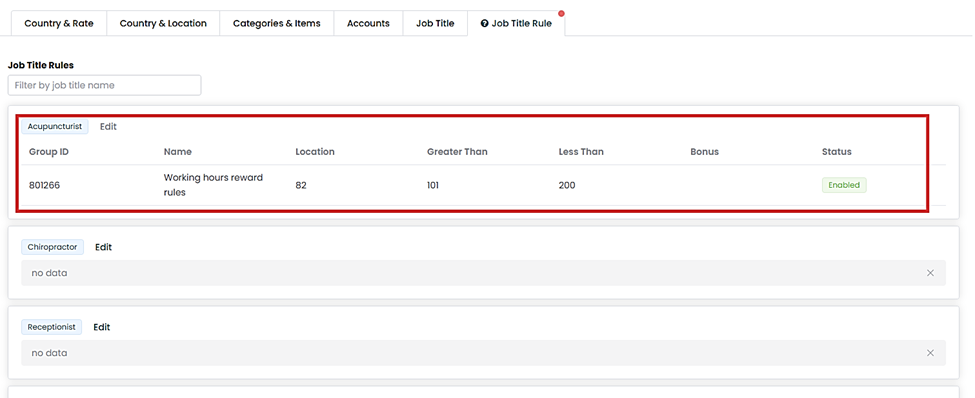
To guarantee fair and consistent compensation, define a unique bonus rule for every Job Title you created.
Please proceed to the next FAQ/demo focusing on ‘How to configure Fogo’s Staff Bonus System: Setting up Job Title Rules – Returning Customer Reward Rules‘ where we will define the bonus formula based on hours rendered.
You can also watch the demo here Demo on How to configure Fogo’s Staff Bonus System: Setting up Job Title Rules – Working hours reward rules (Part 3)
Need a demo or want to learn more? Email us at contact@fogo365.com.