


This process ensures that the corrected bonus percentage or adjusted payment is officially applied to the historical record, creating a transparent and auditable paper trail for that pay period. It moves beyond simple error correction—it’s about legally reconciling your payroll history.
Step 1: Go to Transactions > Staff Bonus.
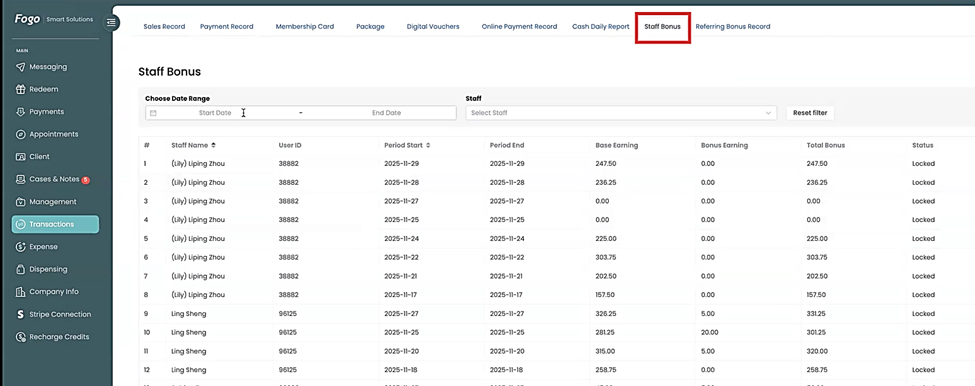
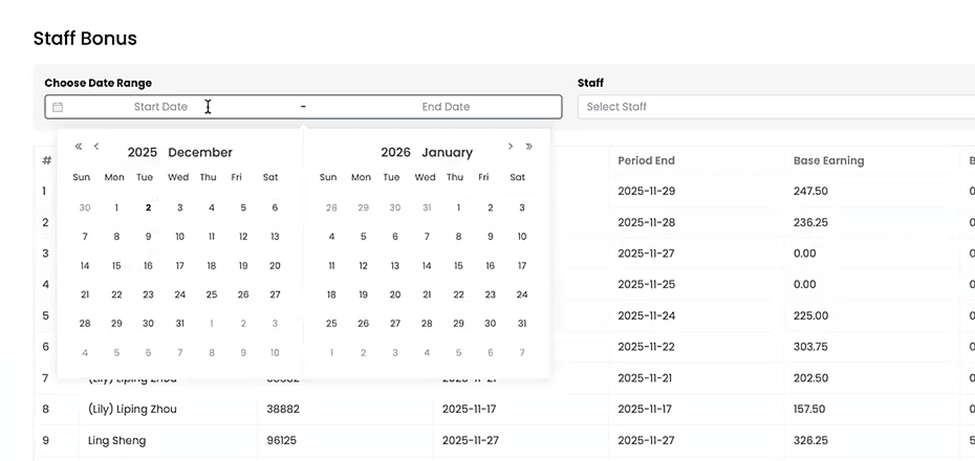
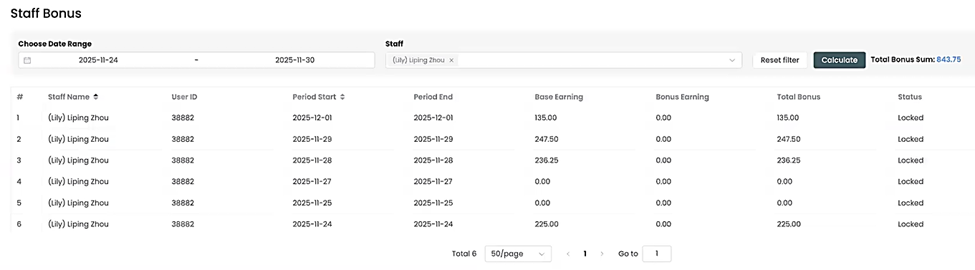
Step 2: Select the pay period from the date range.
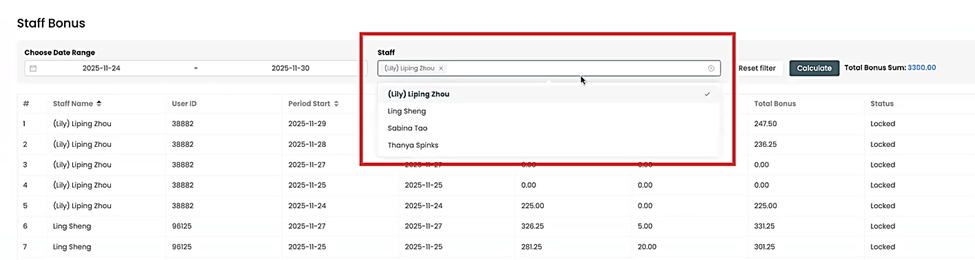
Step 3: Then select the staff from the dropdown list.
Step 4: Then click “Calculate”.
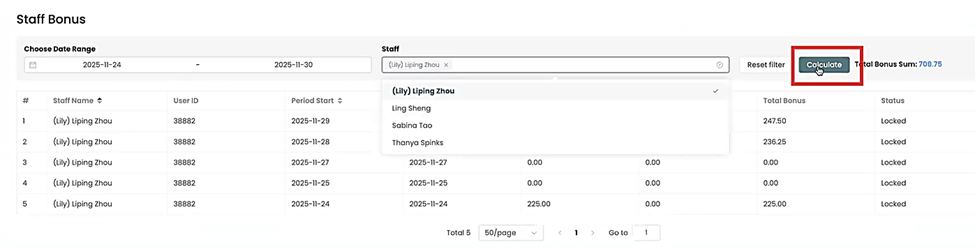
Step 5: The system will give you the staff’s pay including bonuses based on the applied rule.
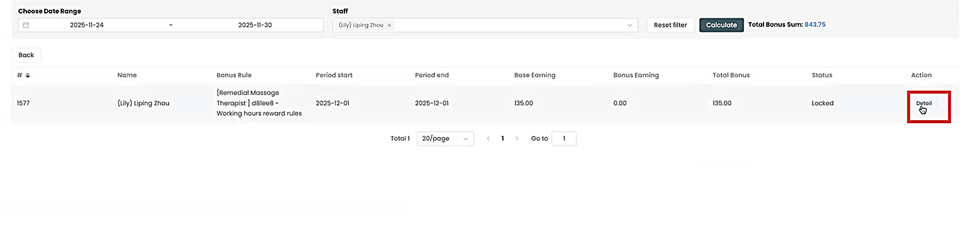
Step 6: You can also check the staff’s individual services rendered by going to “Details”

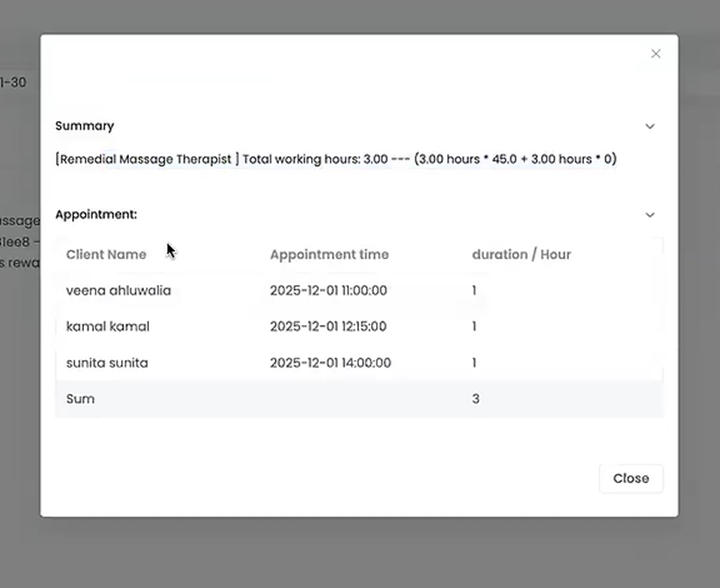
Step 7: Pop up window shows all appointments rendered
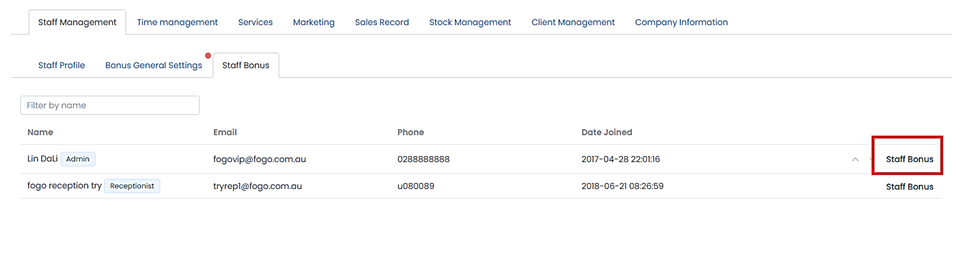
Step 8: To recalculate manually, go to the Staff Bonus tab under Staff Management. Then select the staff, click Staff Bonus on the right part.
Step 9: A new pop up window will populate, select “Unlock”, then “Recalculate”.
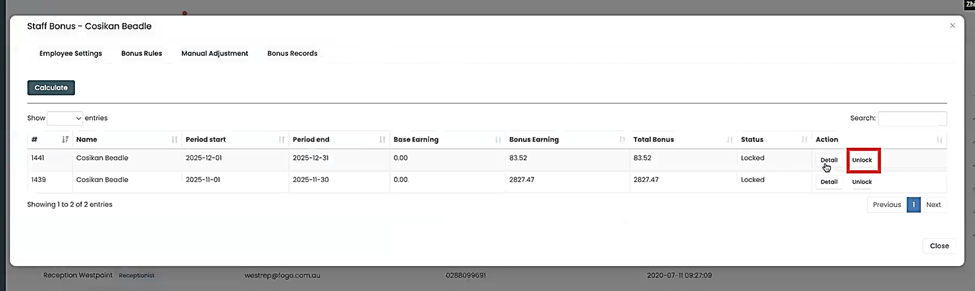
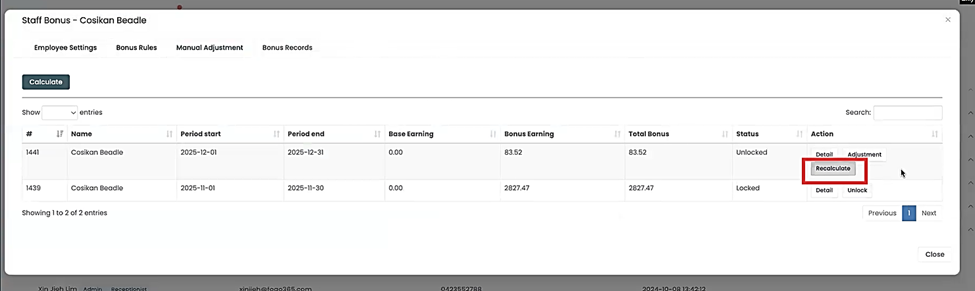
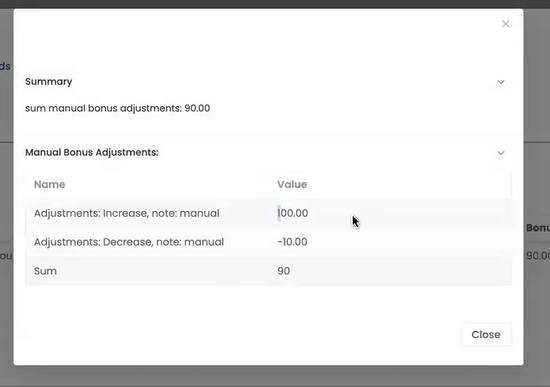
Step 10: All adjustments under the selected staff will show on the details section including manual adjustments.
Remember, the final step is essential: You must re-lock the pay period to finalize the corrected records and prevent further unauthorized changes. This ensures the integrity of your audited payroll history.
For Manual adjustment steps, please refer to How to Manually Adjust Staff Bonus Records in Fogo Smart Cloud.
You can also watch the demo here Demo on How to recalculate Staff Bonus from previous pay period in the Fogo System?
Need a demo or want to learn more? Email us at contact@fogo365.com.