


You need a single, secure, and accurate record for every dollar paid to staff. This tab ensures you can easily handle common exceptions—like a quarterly performance bonus, a correction from a previous pay run, or a staff reimbursement—and guarantee those amounts are tracked, taxed correctly, and recorded alongside the automated bonuses for a complete and compliant payroll history.
Step 1: Access the Adjustment Tab: Navigate to Clinic Management, then Staff management, select the Staff Bonus tab, click the Staff Bonus of the chosen staff and go to the Manual Adjustment tab .
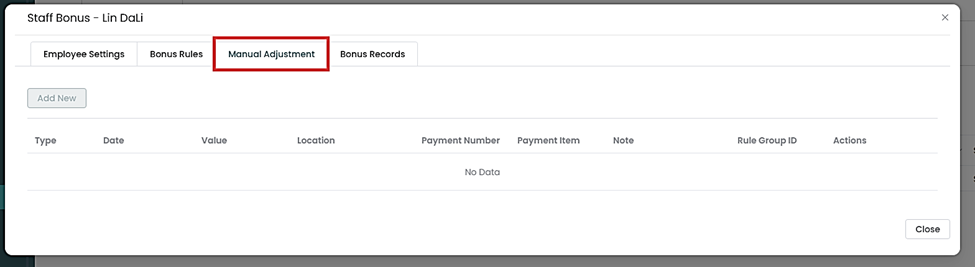
Step 2: Click Add New: Click the Add New button to open the fields for a new manual entry.
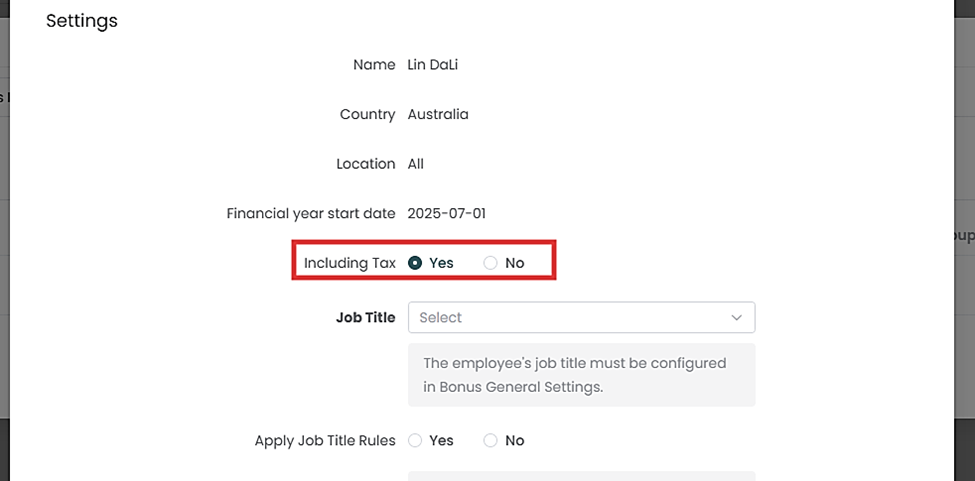
Step 3: Select if the Bonus is with taxes.
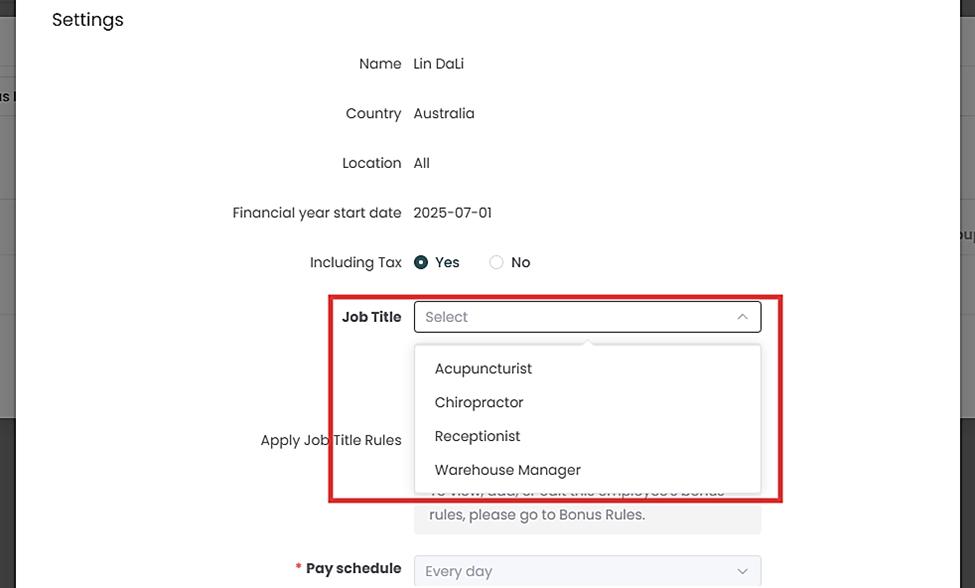
Step 4: Choose the Job Title where you need to make manual adjustments. An employee can have 2 or more Job Titles, so it is important to choose what specific Job Title you need to make adjustments.
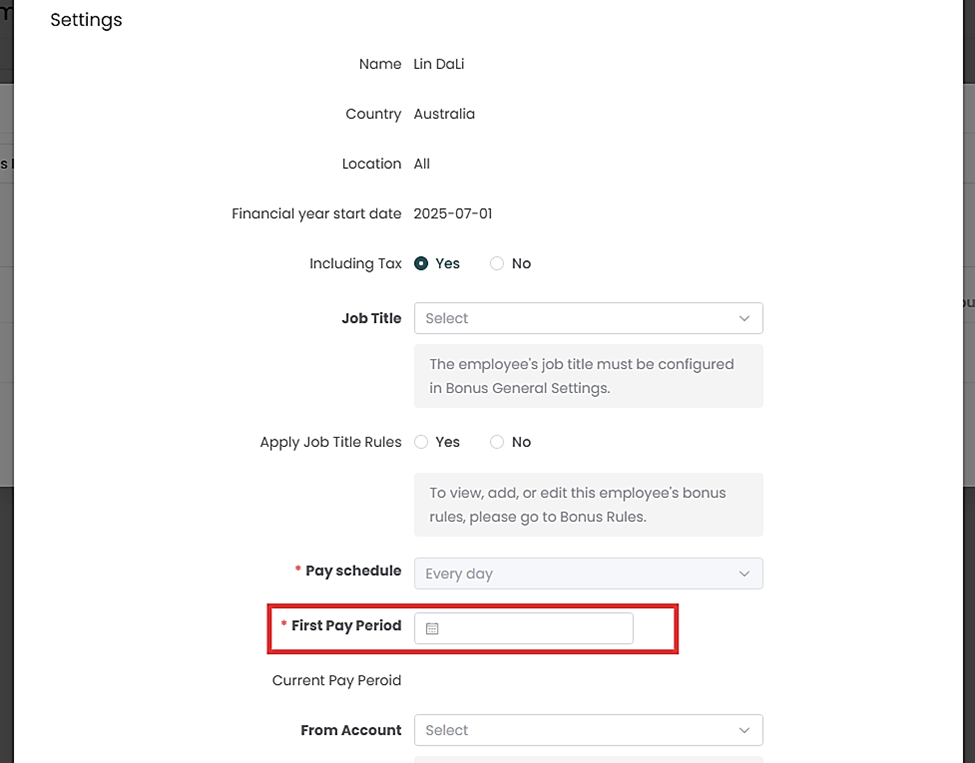
Step 5: Select the Date the payment/adjustment should be applied for (this links the entry to the correct pay period).
Step 6: Select from which account the adjustment will be applied.
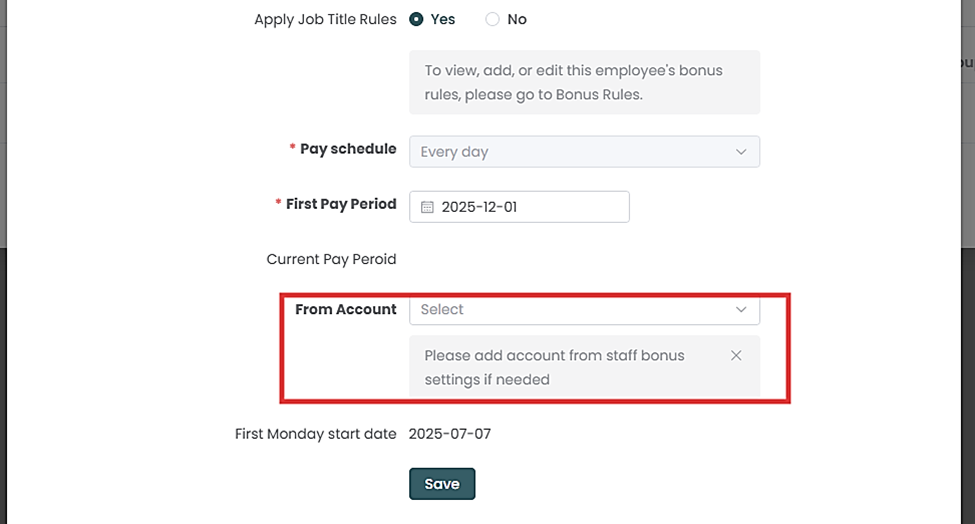
Step 7: Click “Save” once completed.
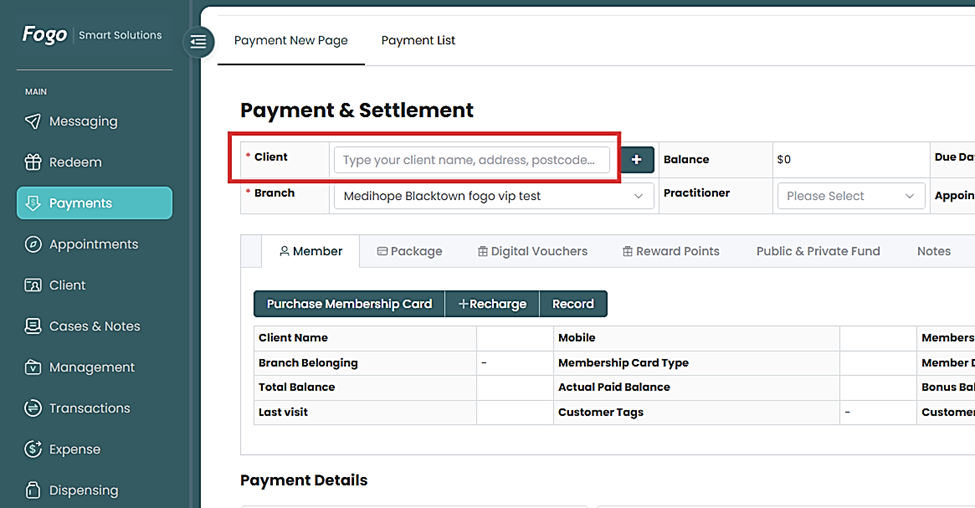
Step 8: Another way to use manual adjustment is via Payments tab. First, navigate to the client’s record or the transaction/invoice where the service is being added.
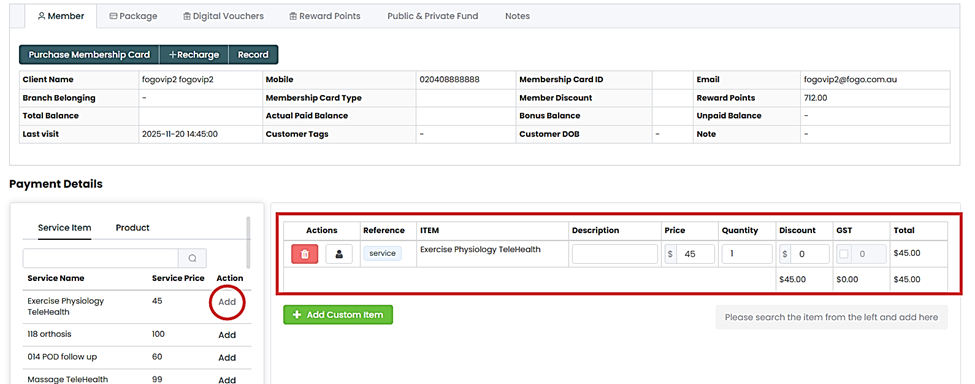
Step 9: In the Payment Details section, locate the line item for the service or product (e.g., Exercise Physiology TeleHealth).
Step 10: Click the “Person” icon. This action will open a selection window or dropdown list.
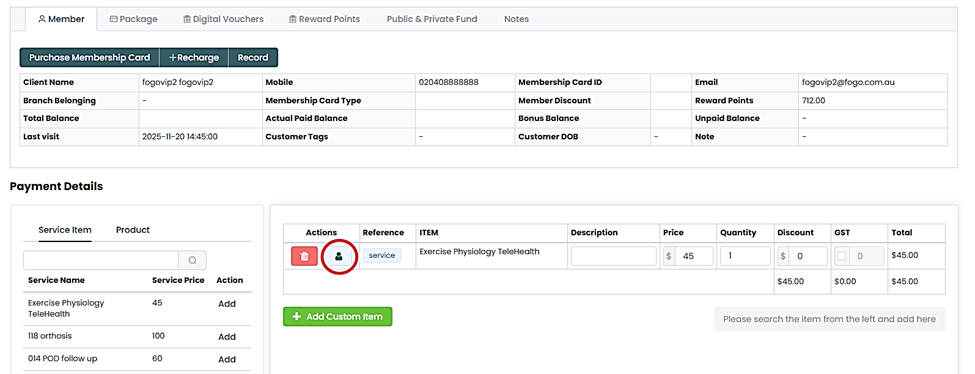
Step 11: Select the Staff Member: Choose the name of the practitioner who performed the service or the staff member who sold the product.

Step 12: Then manually add the value. It is important to take note why manual adjustment has been processed for future references.
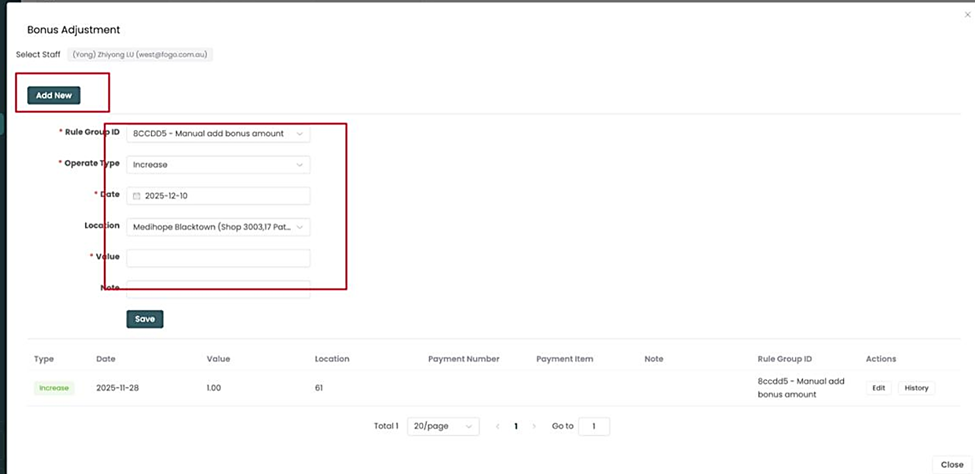
Note: When using the Manual Adjustment tab, always include a detailed, auditable note or Reason. Clear documentation is required to explain why the amount was added or deducted, ensuring compliance and accuracy in your payroll records and protecting you during audits.
You can also watch the demo here Demo on How to Manually Adjust Staff Bonus Records in Fogo Smart Cloud
Need a demo or want to learn more? Email us at contact@fogo365.com.